From Figma to Kontakt
The Kontakt MCP server offers tools to streamline the Komplete UI implementation of an instrument using Claude Code.
This tutorial shows you how to use Claude Code to turn a Figma design into a working Kontakt instrument UI written in Komplete Script. Claude Code reads the design through the Figma MCP server, writes the kscript files, and checks its own result through the Kontakt MCP server. With this feedback loop, Claude can compile the script, read the errors, take screenshots of the instrument and compare them with the design, which gets you to a working implementation quickly.
The example used throughout is the SuperStarSaw design system. While this is originally not a Kontakt instrument, it shows the current capabilities for creating an instrument on the complex side, so it's a good showcase for what current tools can do and existing limitations.
This is the finished instrument we want to get to.
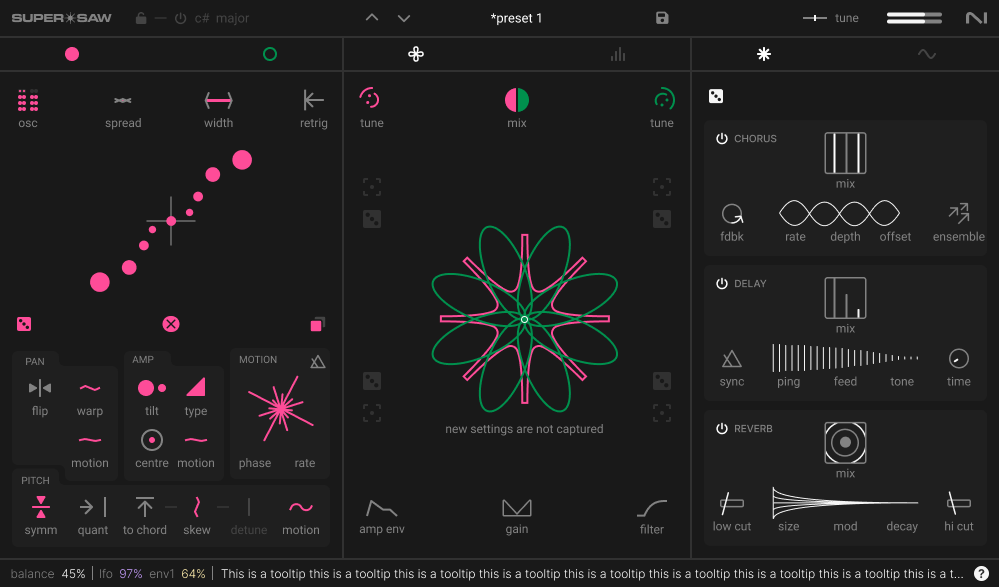
And this is the Figma design it is based on.
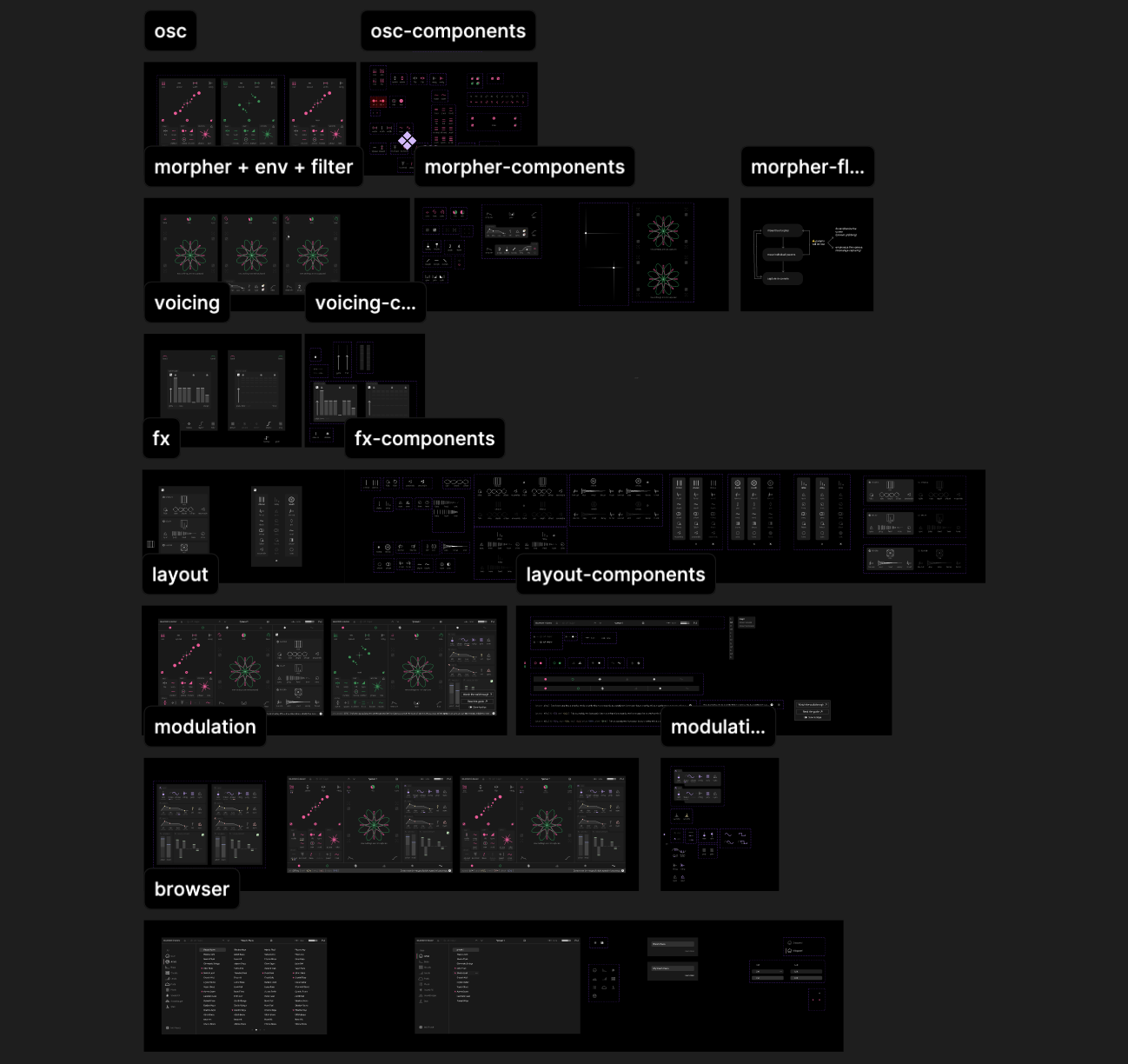
SuperStarSaw is a supersaw synth with two independent oscillator "swarms", a pink one and a green one. The UI is made of these parts:
- Header. Logo, scale lock (for example c# major), preset name with previous/next and save, master tune and the output meter.
- Page bar. Switches what the three columns show. Osc A/B selects the swarm, and two further pairs of tabs switch the middle and right columns between their pages.
- Oscillator bank (left column). Shows the settings of the selected swarm. These are voice count, spread, width and retrig, a visualizer of the voices, and the PAN, AMP, MOTION and PITCH boxes with about fifteen knobs and toggles. Each swarm keeps its own values.
- Morpher or voicing (middle column). The morpher blends the two swarms, with a mix control, a tune control per swarm, a large animated visualizer, and the amp envelope, gain and filter at the bottom. The voicing page shares this space.
- FX or modulation (right column). The FX page has chorus, delay and reverb, each with its own on/off switch, mix and parameters. The modulation page has an LFO, two envelopes, the wheels and the voice offsets.
- Tooltip bar. Shows the value of the control under the mouse, together with a short explanation of it.
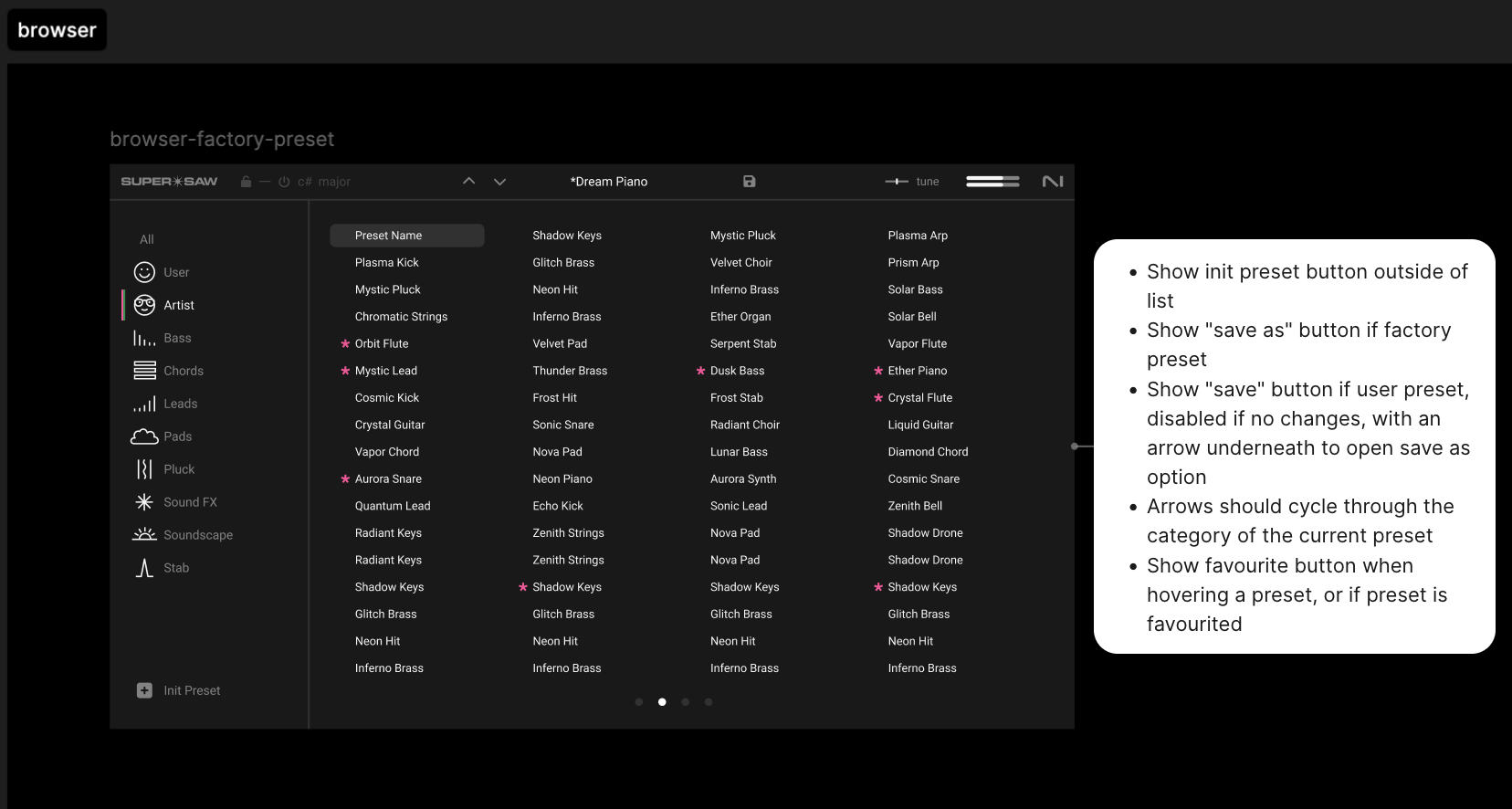
- Preset browser. Takes the place of everything below the header. A category list on the left filters the presets on the right, and each preset can be marked as a favorite. Factory presets fill a four-column grid split into pages, while user presets are shown as a single list. The save button in the header opens a small dialog for naming the new preset.
In the Figma file each of these parts has its own page, next to a page with its components and their variants. Most controls have several variants, for different values, for hover and pressed states, and for the pink and green swarms. We'll look at some parts of it in more detail, but first let's do the setup.
What you need
You need the following before you can start building the instrument:
- Kontakt 8 with the MCP server turned on.
- Claude Code (CLI, desktop app or the VS Code extension).
- The
kontakt-developerplugin for Claude Code. It brings the kscript language reference and the/setup-mcpcommand. - The Figma plugin for Claude Code. It brings the Figma MCP server and the
figma-design-to-codeskill. - A Figma account with a Full or Dev seat on the team that owns the design file.
Set up Kontakt
-
In Kontakt, open Options and go to the Developer tab. Enable the MCP server. By default the server listens on port
3006. The MCP server turns off when you close Kontakt, so you need to enable it again every time you start Kontakt.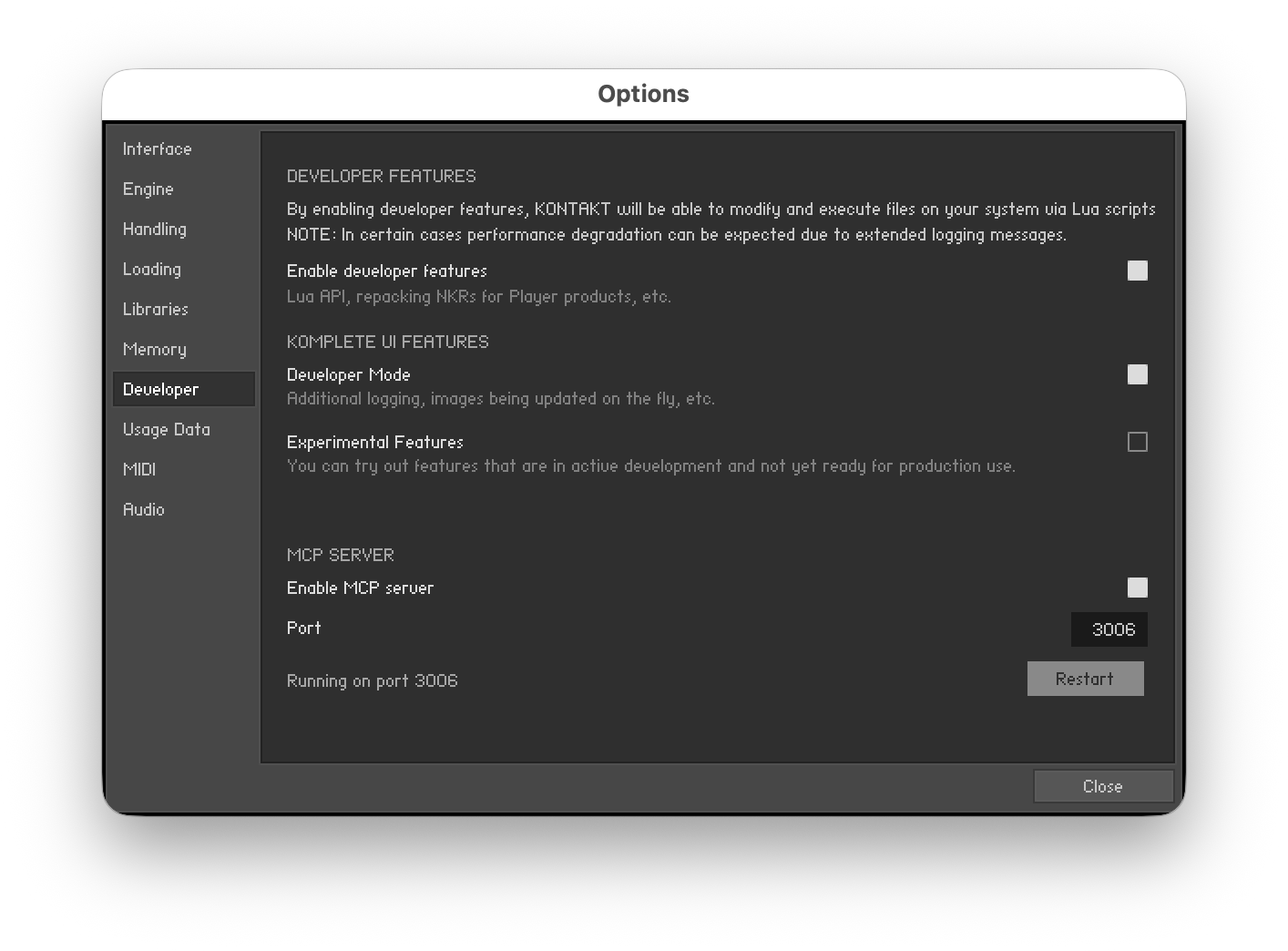
-
Create a new instrument. The quickest way is to select New from template... in the Kontakt menu. The Kontakt Controls template is a good start, because it adds the Kontakt Controls package with example components (knob, slider, toggle, drag and button behaviors) that Claude can reuse later. You can also start from an Empty template and add your own component library.
-
Open Instrument Options and set the instrument size to the size of your design.
Set up Claude Code
Install the two plugins, then connect the two MCP servers.
For Figma, follow the Claude Code instructions from Figma and log in when Claude Code asks you to authenticate.
For Kontakt, follow the instructions in the official repository to install the plugin. Then run its setup command inside Claude Code.
/kontakt-developer:setup-mcp
If you changed the port in Kontakt, pass it to the setup command, for example /kontakt-developer:setup-mcp 3007. Without a port, the command uses port 3006.
If the setup command fails, you can register the server yourself by running this command in a terminal, with your port in the URL:
claude mcp add --transport http --scope user kontakt http://localhost:3006/mcp
Run /mcp in Claude Code to check that both servers are connected.
If the Kontakt server shows as failed, Kontakt was probably not running when Claude Code started. Start Kontakt, then choose the kontakt server in /mcp and pick "Reconnect".
Step 1: Prepare the Figma design
Claude implements what it can see in the file. Anything that is only in the designer's head, or only in a separate document, is either guessed or missing. Treat the design document as the source of truth, and put the information about behavior there. The practices below help you get an implementation that is as close as possible to the intended design.
Design like a spec
Use variants for states
Figma variants are a good way to capture the component type (for example continuous, discrete, binary, unipolar or bipolar), and to give examples of hover and press states.
The "to chord" toggle is an example of how variants can specify behavior. First, the design captures the two states of the toggle.
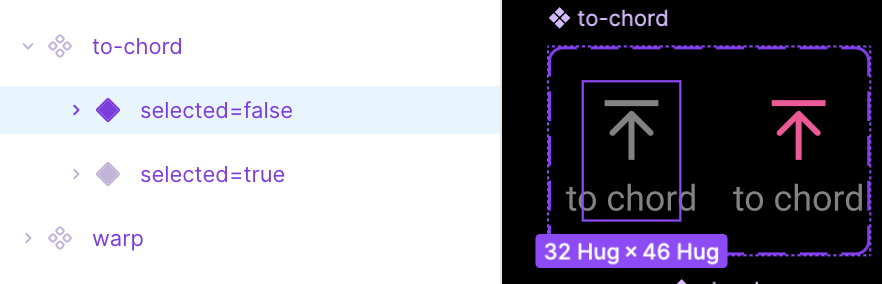
Then it shows which other components depend on the state of the toggle. When the toggle is off, the skew control is shown and detune is inactive. When it is on, the chord type control is shown instead of skew, and detune is active.
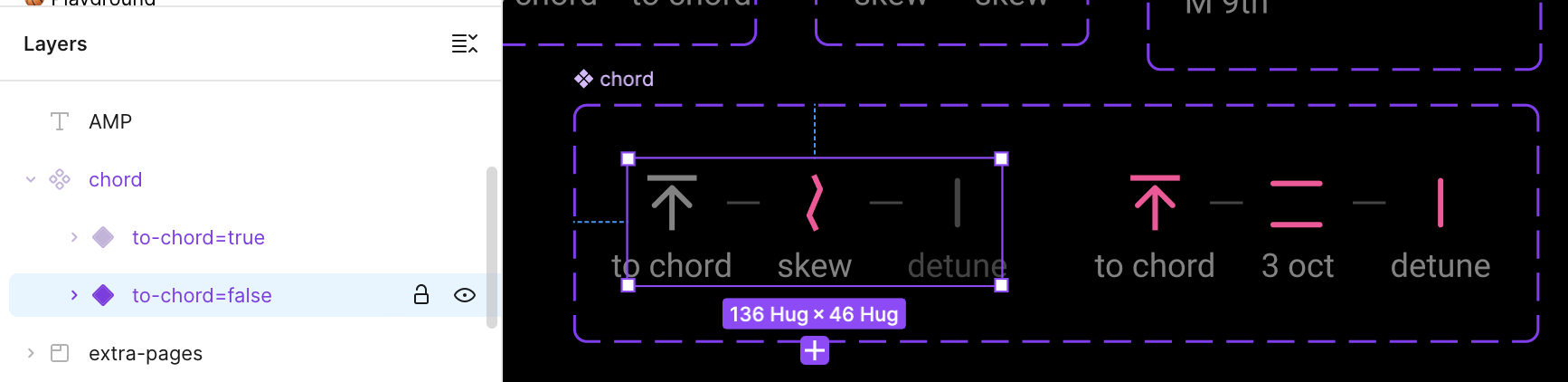
Name the variants with real values, for example -100, 0, 100 for a bipolar knob, or true/false for a toggle.
Show key examples
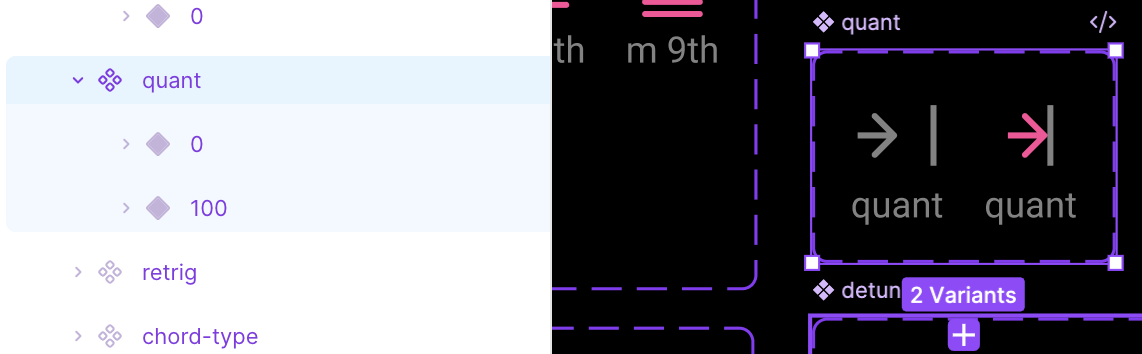
Every state and variation has to be in Figma, otherwise it won't make it into the implementation. Capture enough examples in the design to make the behavior of each component clear. For continuous components, the start and end states may not be enough, and you might need a state in the middle. For example, the quant component was interpreted as a toggle because its only variants were 0 and 100.
Use annotations for behavior
Figma annotations can be used for anything that can't be shown in a variant, such as a transition, or how one component affects other components. An annotation on a component can give its range, its default value, and what happens on hover, press and drag (if the component has no hover or pressed variant). Use the same short structure every time, for example "Type: bipolar knob. Range: -100 to 100. Default: 0. Hover: shows value". For the "to chord" toggle, a useful annotation could be "turning to chord on replaces skew with chord type". Claude reads annotations through get_design_context.
Here is an example of annotations for the browser page.
Make dependencies explicit
Some components and behaviors need more detail, and you might need a few iterations to adjust the design based on the result. Variants were not enough for the oscillator grid in the top left corner. The grid depends on the symm toggle, which is in the PITCH box at the bottom left of the panel.
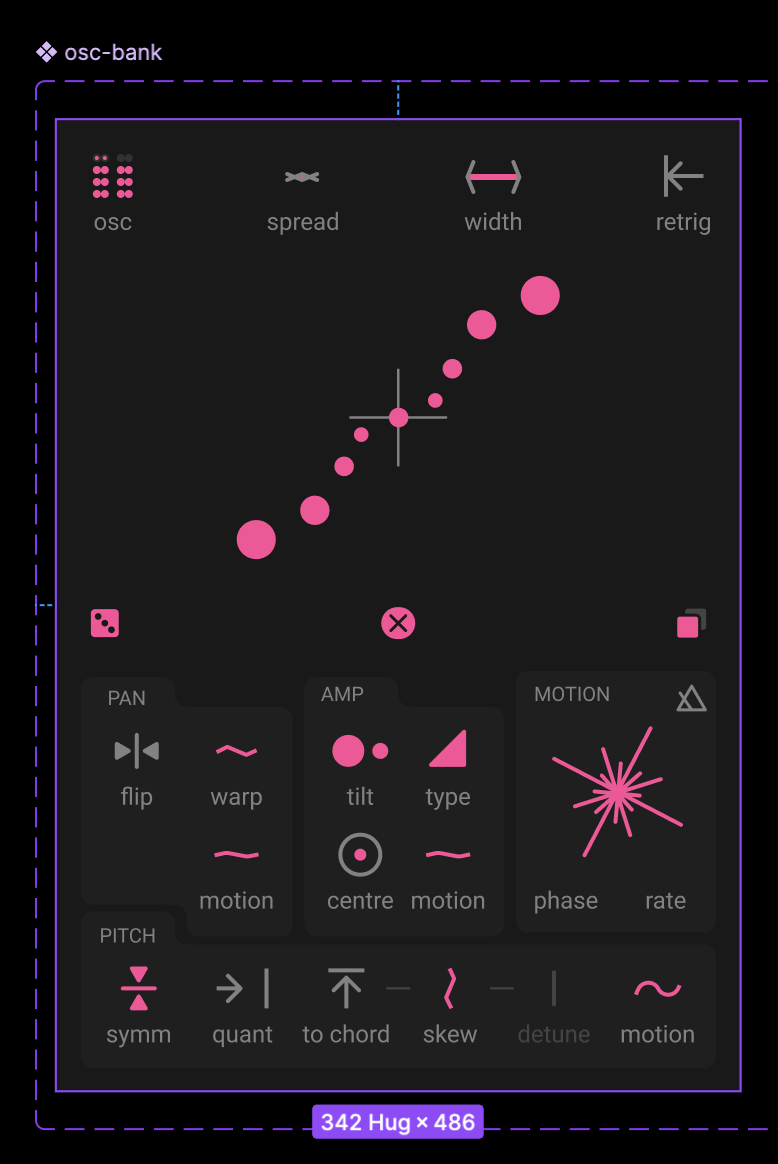
The dependency is in the variant properties, but Claude still missed it.
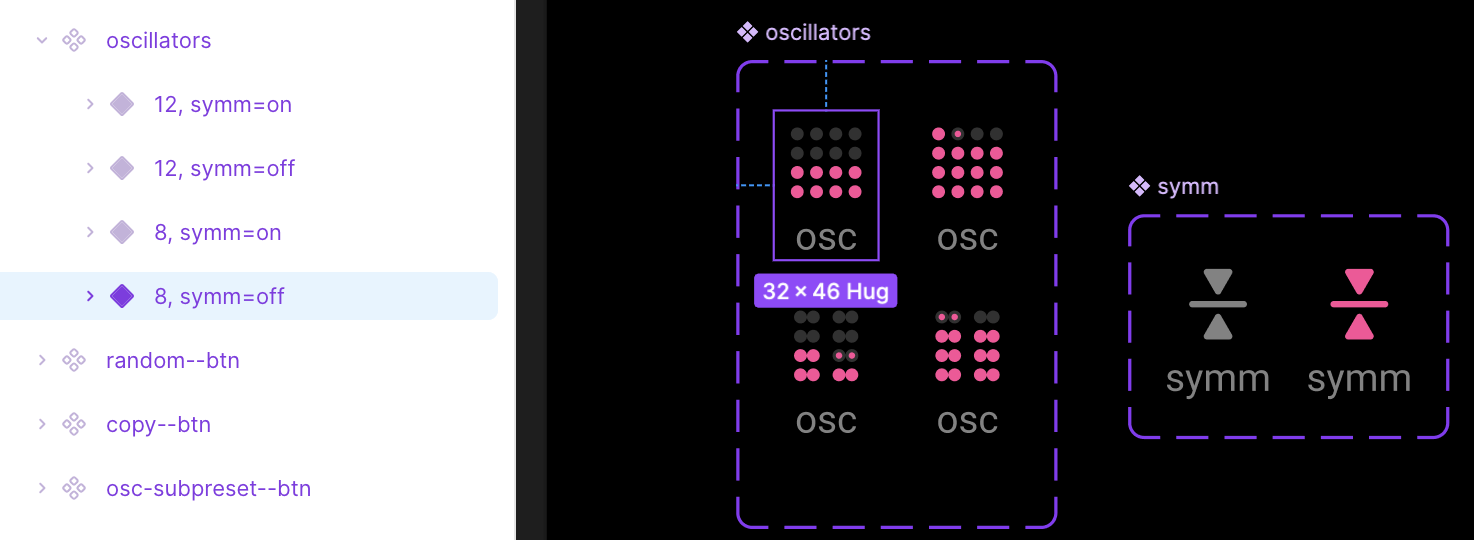
Here are some ways to make a dependency like this harder to miss:
- Name the variant property after the control that drives it, for example
symm (PITCH > symm)instead of justsymm. Then the property says where its value comes from. - Add an annotation on the dependent component that names both sides, for example "Grid layout follows the symm toggle in the PITCH box. Symm on = dots fill in mirrored pairs."
get_design_contextreturns annotations together with the node, so Claude reads them while it builds that component. - Bind both components to the same Figma variable, for example a boolean
osc/symm, used by the symm toggle and by the grid. Variable names show up in the design context, and a shared variable is an explicit link between the two. - Show the dependency in a variant of the parent. The oscillator bank has an osc-b variant where to chord is on and chord type replaces skew. A parent variant per important state can work as a fallback.
Avoid ambiguity in the design
When the design shows different states, changing several independent variables at once makes it ambiguous. For example, the oscillator bank shows how the UI switches between the pink and the green swarm.
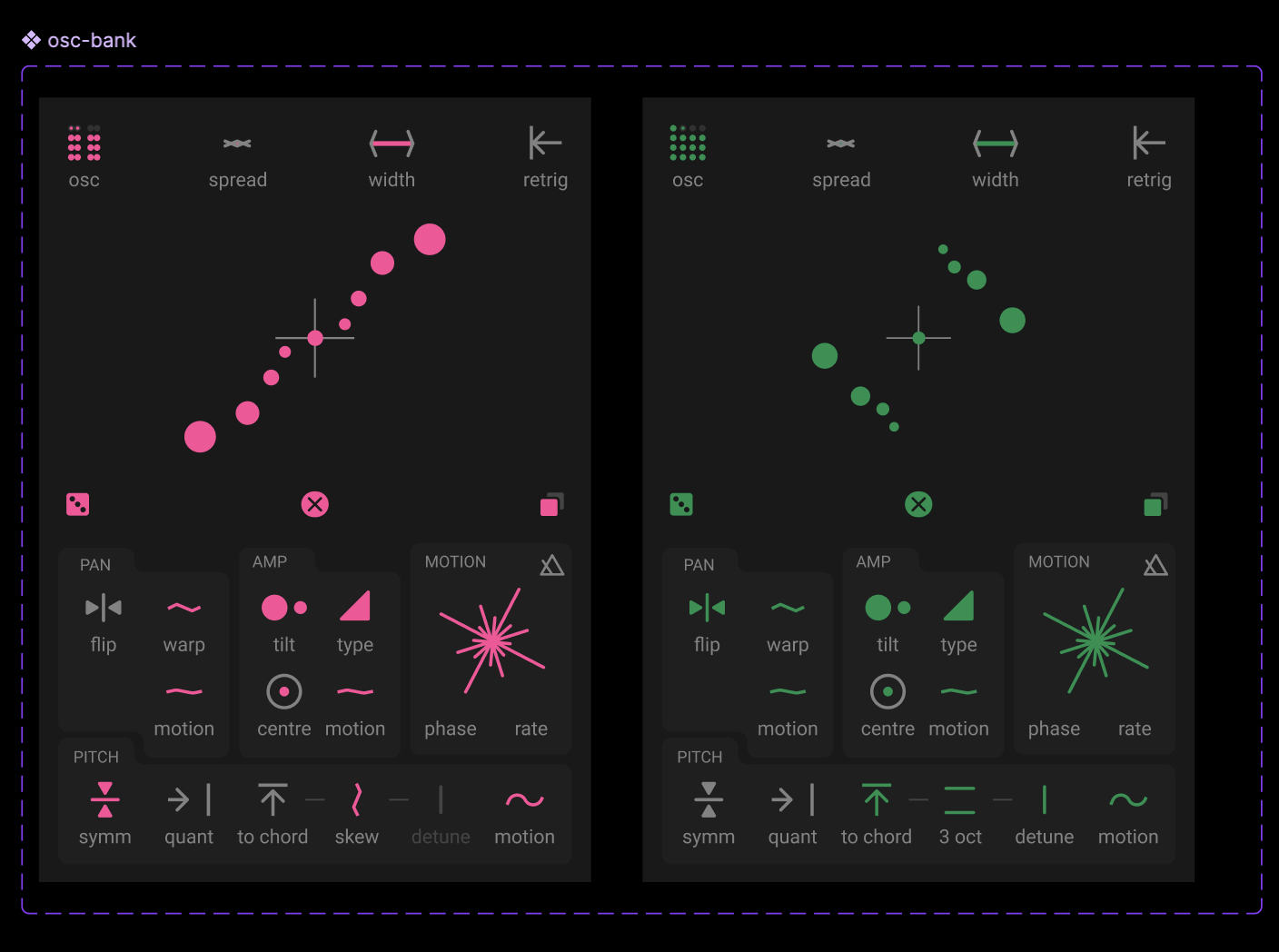
Notice how the same variants also show different states in the PITCH box. Symm is on for one swarm, and off for the other, which affects how the oscillator grid looks. And to chord is on in the green swarm page, which results in a different component displayed to its right than for the pink swarm.

From these variants, Claude can't tell whether the green swarm has a different set of controls than the pink one, or different default values. It is clearer to change one independent state at a time, for example to switch the swarm without changing anything in the PITCH box.
Organize the file
Here are some tips for structuring the Figma file:
- Put each page or view in its own frame or component.
- Model components with variants for their states.
- Give every layer and group a meaningful name, such as "fx page", "pan controls" or "morpher view".
- Use consistent names for related things.
- Remove stray elements, such as earlier iterations of a component. Claude can't tell an old draft from the real thing.
Mark raster controls as sprites
For a sprite-based component, kscript's Image can show one frame of a sprite strip with Image(path, row:, row_count:, column:, column_count:), so the control loads one image instead of many. To get Claude to use it:
- Build the sprite in Figma as one frame with all states stacked vertically at equal height, and name it with a clear suffix such as
tilt knob (sprite, 64 frames). Claude then downloads one asset and only needs to compute the frame index. - When a component set holds the states of one raster control, add an annotation such as "Export as a vertical sprite strip, one frame per variant, in this order". Without it, Claude treats each variant as a separate image.
- Say it in the prompt as a rule: "for raster controls with several states, use a sprite strip and
Image(row:, row_count:, column:, column_count:), not one image per state."
Step 2: Give the prompt
Choose a model
Choose the model and the effort level based on how complex the instrument is. For the oscillator section of SuperStarSaw, Opus 5.5 at high effort gave much better results than Sonnet 5.5 at high effort.
In Claude Code, run /model to pick a model. In the picker, use the left and right arrow keys to set the effort level. You can also set the effort on its own with /effort, for example /effort high.
Start the implementation
Before the first prompt:
- Keep the Kontakt window visible on screen, with the instrument's performance view showing. The screenshot tool can only capture what is on screen. If the view is hidden, you get the error "could not screenshot this instrument: its performance view is not on screen".
- Load the design-to-code skill with
/figma:figma-design-to-code, or name it in your prompt. The skill tells Claude to always request a screenshot of the design as the visual target, to download the real assets instead of redrawing them, and to verify every asset in the result.
For a complex instrument, you can start in Claude's plan mode and review the plan before the implementation starts. Avoid ending up with a second set of design specifications outside your Figma file, though. You would then have two sources of truth to maintain, and they quickly get out of sync. Whenever a component is renamed or removed in Figma, the other documents need to be updated too. If the plan shows that Claude misread a component or a behavior, fix it in the Figma design.
It also helps to implement one section at a time, so that you can review and adjust each one. Point Claude at one section, the component set it uses, and the layout, and say what to leave out. To get the link to a frame or component, right-click it in Figma and choose Copy/Paste as > Copy link to selection. Here is an example prompt:
Use Figma design-to-code to implement in the MyInstrument project the Oscillator section here:
https://www.figma.com/design/<file>?node-id=699-7869, using the components here:
https://www.figma.com/design/<file>?node-id=820-19455, and the layout
https://www.figma.com/design/<file>?node-id=764-15430 to figure out where the section fits in
the instrument, and how to switch between the 2 Swarms (pink/green) in the oscillator.
For the other sections/pages of the instrument do not do the implementation, only the
layout structure.
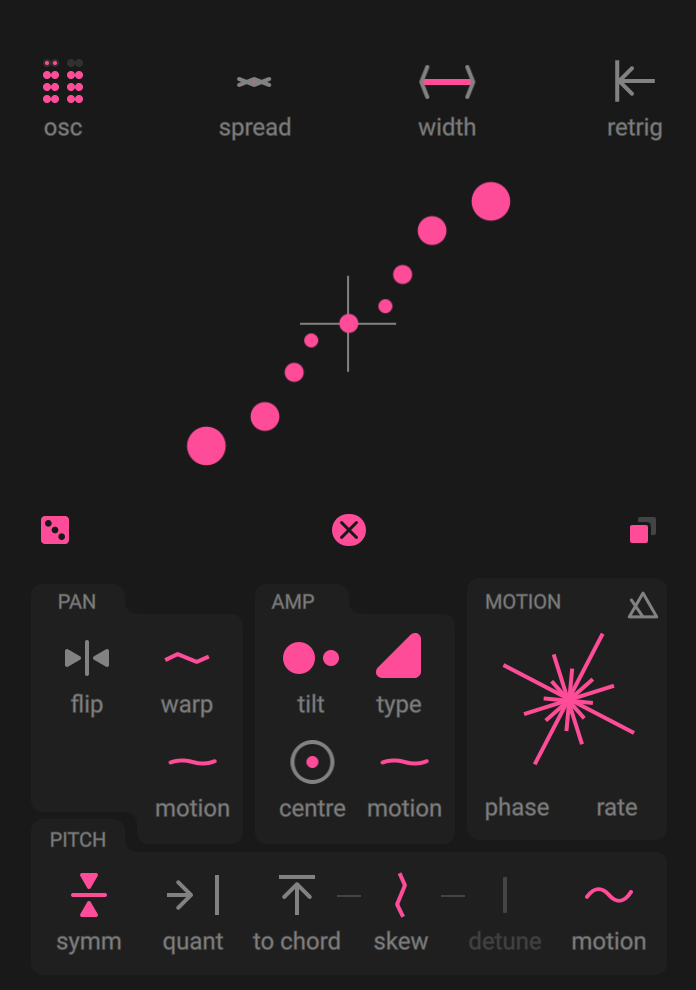
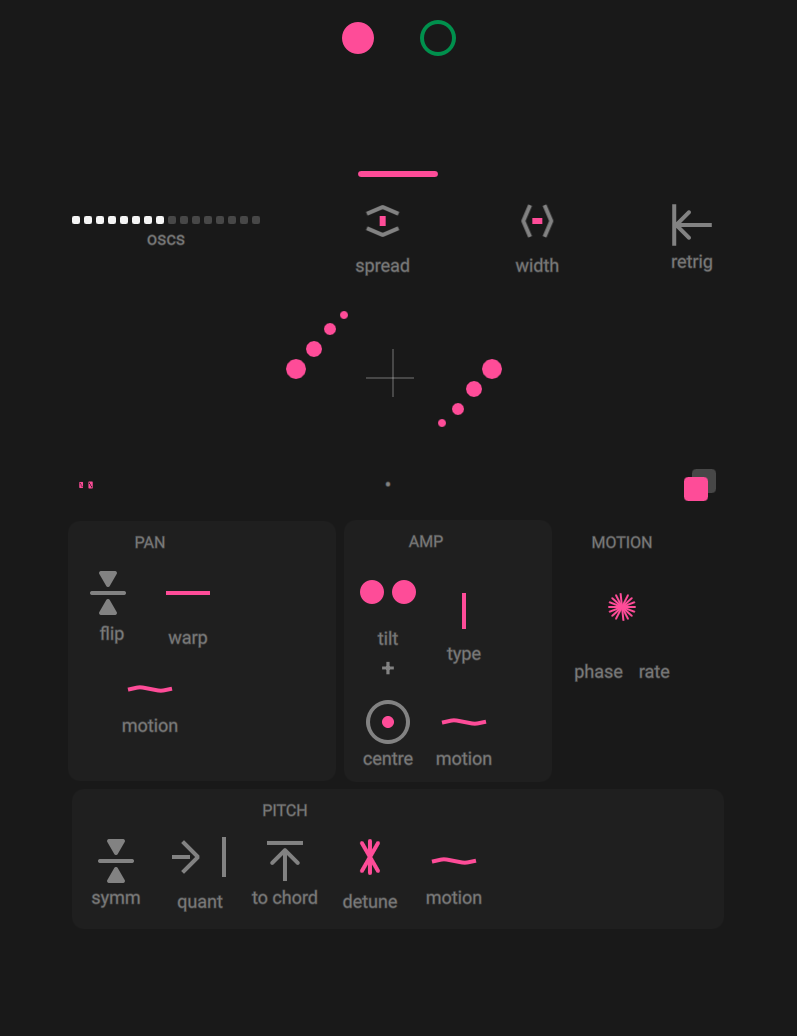
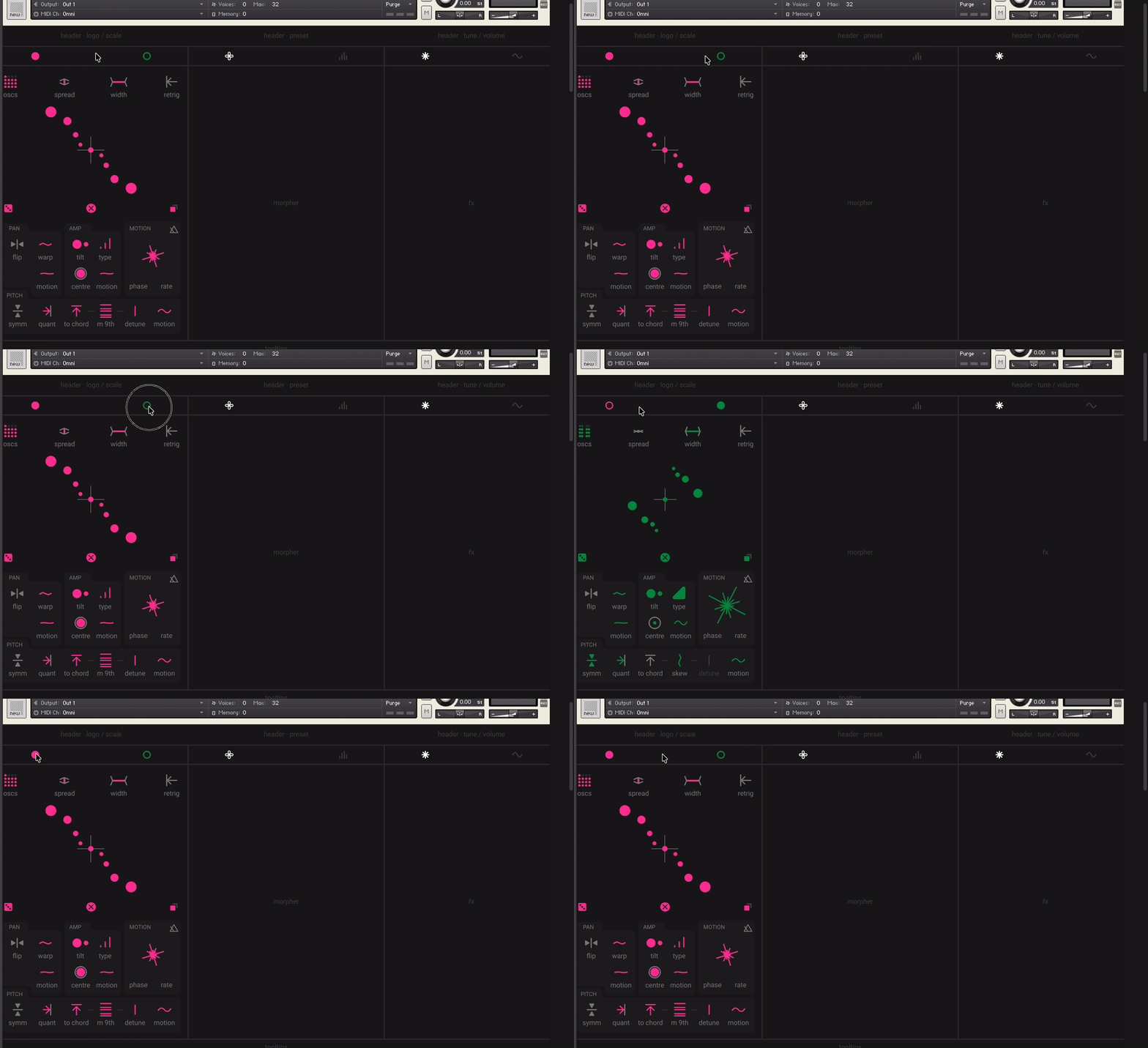
From these three links Claude worked out that the oscillator bank sits in the left column, that the osc A/B buttons in the page bar switch between the two swarms, and that the green swarm has its own state (other default values, other toggles on). By comparing the two variants of the oscillator bank, it also found that when "to chord" is on, the chord type control replaces skew in the pitch row.
Step 3: Refine the behavior
A static design can still have gaps that you need to work through in several iterations, by inspecting the code and updating states in the UI. For SuperStarSaw, most of the iterations came from gaps in the design. Each iteration shows you what is missing, so you can complete the design as you go.
Some behaviors apply to the whole instrument, such as the tooltips. For these, you can add custom rules, as explained in Figma's developer docs for the MCP server. For SuperStarSaw, a CLAUDE.md file could contain rules like these:
## Interaction rules (apply to every control)
- Every control reports itself to the tooltip strip on hover: label, live value text, modulation target.
- While a control is being dragged, its tooltip stays, even if the pointer leaves the control
  or passes over other controls. On release, clear it if the pointer is outside.
- Continuous controls show their value instead of their label while hovered or dragged.
- Drag is vertical; Shift = fine adjustment; Ctrl/Cmd-click = reset to default.
- Build these hooks into the shared control primitives first, so every new control inherits them.
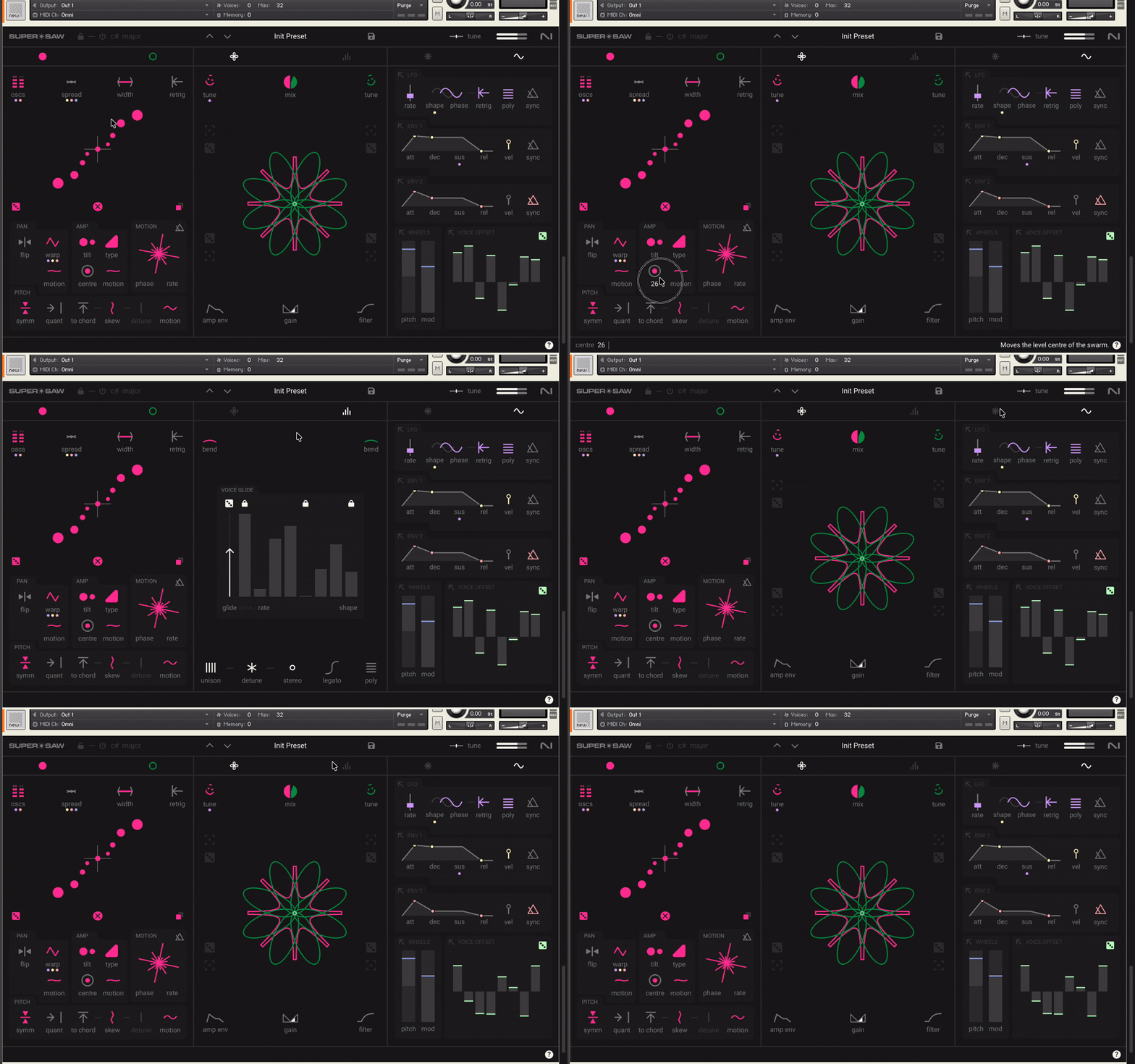
This is how far we got with the implementation of SuperStarSaw. This result took about 66 minutes of Claude working time, so from each prompt to the end of its reply. This does not include the time between prompts: reviewing results, testing in Kontakt, updating the design, writing the next prompt.
Troubleshooting
The screenshot tool says the performance view is not on screen
The Kontakt window or the instrument's performance view is hidden or minimized. Bring it on screen and ask Claude to try again.
The Kontakt server is listed as failed in /mcp
Start Kontakt with the MCP server enabled, then reconnect the server from /mcp.
Figma calls fail or hit a limit after a few requests
Check which team owns the file. MCP limits follow the plan of the team where the file lives, and your seat on that team. In our case, a copy of the design file landed in personal drafts, which belong to a free Starter team, and hit the Starter limit straight away. The original file, in a Professional team where we had a Full seat, worked without limits. To make an editable copy, duplicate the file and move it into a project of the team where you have a Full seat.
Copying or editing annotations fails
Annotations can't be edited through the API with a View seat. Reading them still works through get_design_context.
A plugin command can't find claude
Claude Code's shell may use a reduced PATH. Run the command yourself in a terminal, or check with claude mcp list whether the server is already registered.