XYPad
Control the active cursor of a KSP ui_xy.
component XYPad
Example
import { XYPad } from kontakt_controls

export var main = XYPad(
    control_id: "my_xy",
    label: "XY Pad",
)
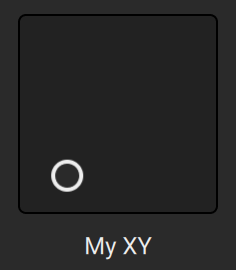
Constructor
constructor(control_id: String, label: String, step_count_x: Int? = nil, fine_step_count_x: Int = 2, sensitivity_x: Float = 1, step_count_y: Int? = nil, fine_step_count_y: Int = 2, sensitivity_y: Float = 1, value_to_string: XYValueFormatter = default_xy_value_formatter, style: XYPadStyle = default_xy_pad_style, disabled: Bool = false)
control_id: StringThis is the name that you assigned to the corresponding KSP
ui_xycontrol.label: StringThe label to be displayed.
step_count_x: Int? = nilDetermines the number of steps it takes from min to max.
Setting it to nil uses the finest resolution possible.
fine_step_count_x: Int = 2Further subdivides the steps when "shift" is pressed. Setting it to 1 means disables fine tuning.
If
step_count_xis nil, this will reduce the sensitivity.sensitivity_x: Float = 1Controls the sensitivity on the x-axis. When set to 1 one can move over the entire value range by moving from the left edge to the right edge.
step_count_y: Int? = nilDetermines the number of steps it takes from min to max.
Setting it to nil uses the finest resolution possible.
fine_step_count_y: Int = 2Further subdivides the steps when "shift" is pressed. Setting it to 1 means disables fine tuning.
If
step_count_yis nil, this will reduce the sensitivity.sensitivity_y: Float = 1Controls the sensitivity on the y-axis. When set to 1 one can move over the entire value range by moving from the left edge to the right edge.
value_to_string: XYValueFormatter = default_xy_value_formatterConverts the x and y value to a string displayed in the label when the user interacts with the control.
By default it simply shows the raw KSP values rounded to two digits.
style: XYPadStyle = XYPadStyle()Customizes the appearance.
See XYPadStyle
disabled: Bool = falseDisables the interaction with the control.